Getting started with Lightfield
Last updated: August 3, 2026
Welcome to Lightfield, the AI-native CRM that self-assembles and takes action for you.
Lightfield connects to your everyday tools, builds your CRM from your email and calendar, and starts helping you follow up, analyze, and take next steps.
This guide takes you from a new workspace to a CRM your team can run on. It covers:
Connecting your email and calendar
Setting your visibility, record creation, and recording preferences
Importing your existing CRM data
Giving Lightfield context about your business
Inviting your team and connecting your other tools
Setting your opportunity stages and first automations
Work through the steps in order. Most teams reach a working CRM in one sitting and finish the rest over their first week. If you've been using Lightfield for a while already, scan the steps and pick up where you left off.
How it works
1. Connect your mail and calendar
Once your workspace is created, you'll be prompted to connect your mail and calendar.
Lightfield uses these integrations to self-assemble your CRM - turning every email, meeting, and contact into structured records.
During onboarding:
Choose the email address you want to connect
Grant permission so Lightfield can securely sync contacts, emails, and meetings
You can connect more than one email account to Lightfield. To add additional accounts later, go to Settings → Mail and Calendar → Add account. You can find more details in the related article below.
Related articles: 📄 Syncing additional mail and calendar accounts · 📄 Syncing a shared or group inbox
2. Configure visibility and record creation
After connecting, you'll see controls for how Lightfield syncs and shares information. All four live under Settings → Mail and Calendar.
Account & contact creation
Controls how new records get created from your meetings and emails.
Off - no records are created automatically
When someone responds - records are created when someone responds to your email or attends a meeting with you
When you reach out (default) - records are created when you email someone or attend a meeting with them
Always - records are created for any email or meeting with external participants
The default, When you reach out, suits most sales teams, since your outbound gets tracked from the first touch. Choose When someone responds if you'd rather only see relationships that went two ways, which keeps unanswered cold outreach out of your CRM entirely. Choose Always if you want inbound captured too, and expect to spend more time filtering.
By default, Lightfield only creates records for external business domains, so messages from personal addresses (e.g., @gmail.com or @outlook.com) are ignored. To track personal email addresses, check Create contacts from personal email addresses.
Backsync range
Controls how far back Lightfield syncs your mail and calendar. Defaults to 30 days, adjustable up to 24 months.
Start with three to twelve months. That covers the relationships most teams actually want in their CRM, and you can widen it at any time.
Visibility settings
Controls what your teammates can see from your meetings and emails.
Full access - teammates can see shared meeting summaries, transcripts, and email context
Metadata only - teammates see participants and timestamps but not content
Full access is the right default for most of a sales team, since the value of a shared CRM comes from seeing what happened on an account before you touch it. Metadata only suits people whose correspondence is mostly sensitive, such as a founder whose inbox is largely investor, legal, and hiring conversations.
Do not track
Excludes specific domains or addresses from syncing entirely.
Worth ten minutes up front. Inventory the domains that should never enter Lightfield - your law firm, your investors, your accountants, your recruiters - and add them before your team joins.
All four settings can be changed later, though changing them doesn't retroactively remove what's already been captured. That's why it's worth setting them before inviting your team.
Related article: 📄 Understanding how Lightfield captures data
3. Set your recording preferences
Go to Settings → Recording. Three options:
Record external meetings only (default) — Lightfield records meetings you participate in that have external participants
Record all meetings — Lightfield records every meeting you participate in. A dropdown lets you include or exclude internal 1:1s
Don't record — Lightfield doesn't record by default, and you can still record individual meetings directly
These are your defaults, not the workspace's. Recording is set per person, and a meeting is set to record based on the individual settings of the workspace members participating in it. Any meeting can be overridden on the meeting page.
What we recommend: record all meetings, excluding internal 1:1s. Internal deal strategy and pipeline reviews are exactly the conversations people try to reconstruct from memory weeks later. Manager one-on-ones are the one internal conversation that's routinely personal, so leaving those out removes the main objection to recording everything.
The Lightfield recorder joins as a visible attendee. You can admit it from the waiting room or remove it partway through a call.
Related articles: 📄 How Lightfield meeting recording works · 📄 Controlling which meetings get recorded · 📄 Track and record internal meetings
4. Import your existing CRM data
Your CRM gets built from two places: the mail and calendar you connected, and the data you bring in. Most teams arrive with history in HubSpot, Salesforce, Attio, or a spreadsheet.
Wait until your initial mail sync has finished, then import. Importing while the sync is still running can create two records for every company you've emailed — one from the import, one from your inbox.
Import in this order: accounts first, then contacts, then opportunities. Each one attaches to the ones before it.
Two things to expect. Some duplication is normal on a first import and quick to resolve early. And Created At will show your migration date, not the original date from your old system — it's a system field, so bring the original in as a custom field if it matters to you.
Related articles: 📄 How to export from your existing CRM · 📄 How to import data using CSV · 📄 Merging and de-duplicating records
5. Explore your workspace
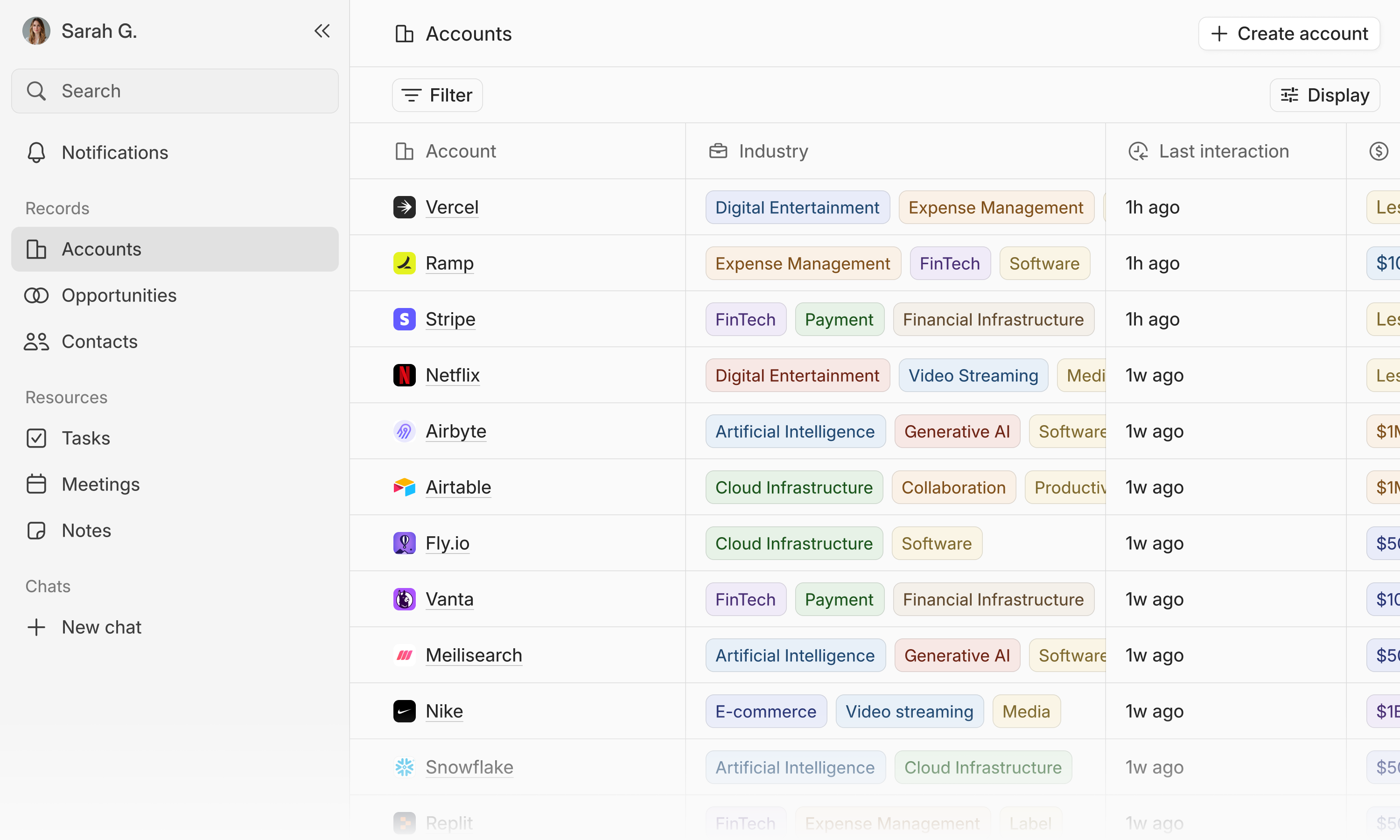
Once setup completes, Lightfield begins populating your CRM in real time (if record creation is enabled). If you chose to keep record creation disabled, your workspace will still sync your data in the background, but you’ll need to create records manually or turn on auto-creation later.
Use the sidebar to navigate:
Accounts - company-level records built automatically from your communications
Contacts - people synced from connected mail and meetings
Opportunities - pipeline, needs to be created by users
Chat - ask Lightfield things like “What’s the latest with Acme?” or “Draft a follow-up from yesterday’s demo.”
Chat is the most capable surface in Lightfield, and most people underuse it. It does four things.
Reads your CRM
What's the latest with Acme?
Which opportunities close this month?
Analyzes it
Which deals have gone quiet?
Compare our win rate by lead source this quarter.
Makes changes to it
Create an opportunity for Acme in discovery, $40K, closing end of September.
Add a currency field on accounts called ARR and fill it in from past conversations.
Assign the action items from that call to the right owners.
Explains itself
How do I set up an automation?
Can I restrict who sees this deal?
That last one matters most early on. When you're unsure how something works, ask chat before searching — it can see how your workspace is configured, so the answer accounts for your actual setup, and it can often make the change for you rather than telling you where to click.
Ctrl+K or Cmd+K jumps you to any record by name.
Related articles: 📄 What the agent can do · 📄 Agent access, permissions, and prompt tips
6. Give Lightfield context about your business
The highest-return step in this guide, and it takes about ten minutes. Everything Lightfield drafts, summarizes, and suggests is downstream of what it knows about your business.
Go to Knowledge and add:
What you sell and who buys it
Your competitors and how you differentiate
Your pricing and packaging
Your sales process (exit criteria)
Three real emails you'd be happy for a teammate to copy. This does more for the tone of AI-drafted email than any description of your voice
You can upload existing decks, one-pagers, and battlecards directly rather than retyping them.
Related article: 📄 Giving Lightfield context about your business
7. Invite your teammates
Lightfield works even better when your whole team connects - creating a unified, auto-updating CRM.
To invite teammates:
Go to Settings → Members → Invite via email
Enter their work emails
Assign roles (Admin or Member)
Lightfield currently supports two roles for workspace users: admins and members.
Admins can customize your data model, edit opportunity stages, and invite new members.
Members can view and contribute but can’t change workspace-wide settings.
When teammates join, Lightfield merges shared contacts and accounts automatically, keeping everyone in sync.
8. Connect your other tools
Connectors let Lightfield pull context from the tools you already work in. When you ask the agent something that needs information from another system, it goes and gets it.
Authorization is per person, not per workspace. If a teammate connected Slack, that doesn't connect it for you. Each person authorizes the tools they personally use.
Connect the ones you actually work in. A connector you authorized and never touch adds nothing. If your team runs shared channels with customers, Slack is usually the highest-value one — a large share of what happens in those relationships never reaches email.
Check Settings → Connectors for the current list, which changes regularly.
Related articles: 📄 Controlling sync and connecting integrations · 📄 Slack · 📄 Lightfield agent in Slack · 📄 Granola · 📄 LinkedIn · 📄 Dialers · 📄 Claude and API
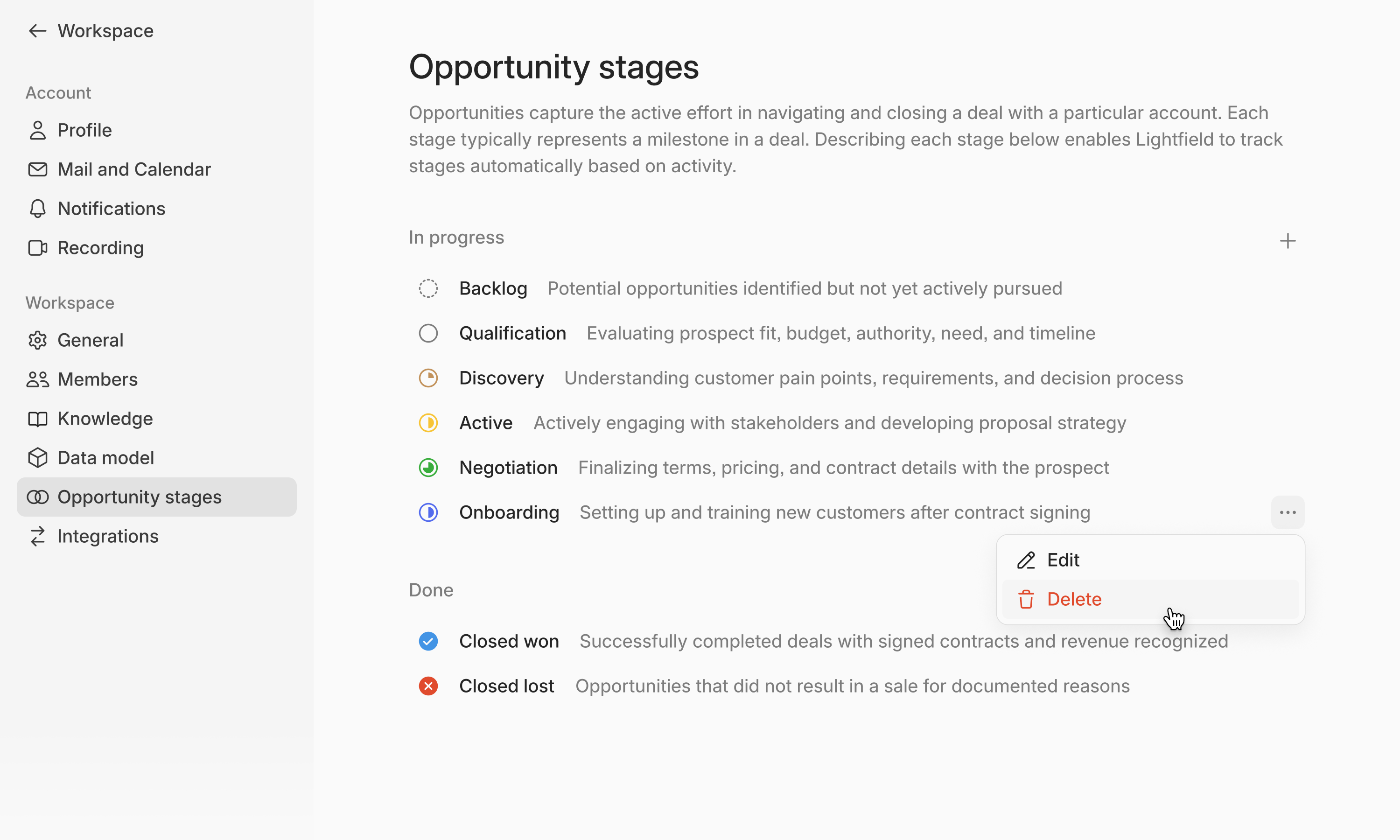
9. Set your opportunity stages
Go to Settings → Opportunities and match the stages to how you actually talk to customers.
Keep the list short. Five or six stages that each mean something specific work better than ten that people guess between. Every stage should have a clear answer to "what had to happen for a deal to get here."
Lightfield uses your stages to interpret deal progress and will suggest updates when a customer signals movement, such as "we're ready for a trial."
Related article: 📄 Customizing your CRM data model
10. Set up your first automations
Automations are how Lightfield does recurring work without being asked. Describe what you want in chat and it builds it.
Four cover most of what teams do by hand in their first month:
Post-meeting follow-up draft. After every external meeting, draft a follow-up based on what was discussed and what you committed to, left as a draft for review. The single most valuable one, and the one most new customers don't know exists.
Auto-create opportunities. When a meeting is booked with a company that has no open opportunity, create one and assign it to the organizer.
Flag at-risk deals. Every weekday, find open opportunities with no customer contact in 14 days and a close date inside 30, and create a task for each owner.
Suggest closed lost. Find open opportunities with no activity in 60 days and suggest closing them, asking before changing anything.
Ask for a suggestion before you ask for an action.
Related article: 📄 Automations
11. What happens next
Your workspace is live and syncing. Two habits to build from here.
Use what Lightfield produces. Read the prep doc before a call and the summary after. Transcripts, next steps, and suggested record updates all land there. Turn the commitments you made into tasks straight from the meeting or the opportunity.
Add structure as patterns emerge. After a week or two you'll notice the question you ask on every call that has nowhere to live, or a distinction between customers your records don't capture. Add fields then, rather than trying to anticipate them.
Two things to get right when you create a field. Field type can't be changed afterwards, so name the type when you ask chat for it — "add a currency field on opportunities called Contract Value." And start new fields on suggest rather than auto, so you can see the quality of the inference before it touches your data.
Related articles: 📄 How to update and regenerate meeting prep · 📄 Creating tasks and notes · 📄 Customizing your CRM data model · 📄 Custom objects · 📄 Manage object display settings · 📄 Dashboards · 📄 Lists, exports, and filtering
Personalization strengthens everything Lightfield does , from summaries and follow-ups to deal insights and recommended actions.
Common Questions
How long does setup take?
Usually under an hour. You can explore your workspace while Lightfield syncs your data in the background.
Can Lightfield enrich company info automatically?
Usually under 10 minutes. You can explore your workspace while Lightfield syncs your data in the background.
Do I need to define my fields first?
No. You can add or edit fields anytime. Lightfield can update your CRM retrospectively based on past emails and meetings.
Can I change visibility or auto-creation later?
Yes. All sync preferences can be updated under Settings → Mail and Calendar.
Can I test Lightfield solo before inviting my team?
Absolutely. You can set up Lightfield individually and invite others later - your data and setup carry over.
My email and calendar show “Disconnected.” What should I do?
This usually happens when not all permissions were granted during setup. Go to Settings → Mail and Calendar, click the three-dot icon next to Disconnected, then select Connect account and make sure you grant all required permissions for mail, calendar, and contacts.