Manage object display settings
Last updated: July 17, 2026
Workspace admins can customize how fields appear on record pages and choose which objects appear in the workspace sidebar. These settings apply to everyone in the workspace and support both standard and custom objects.
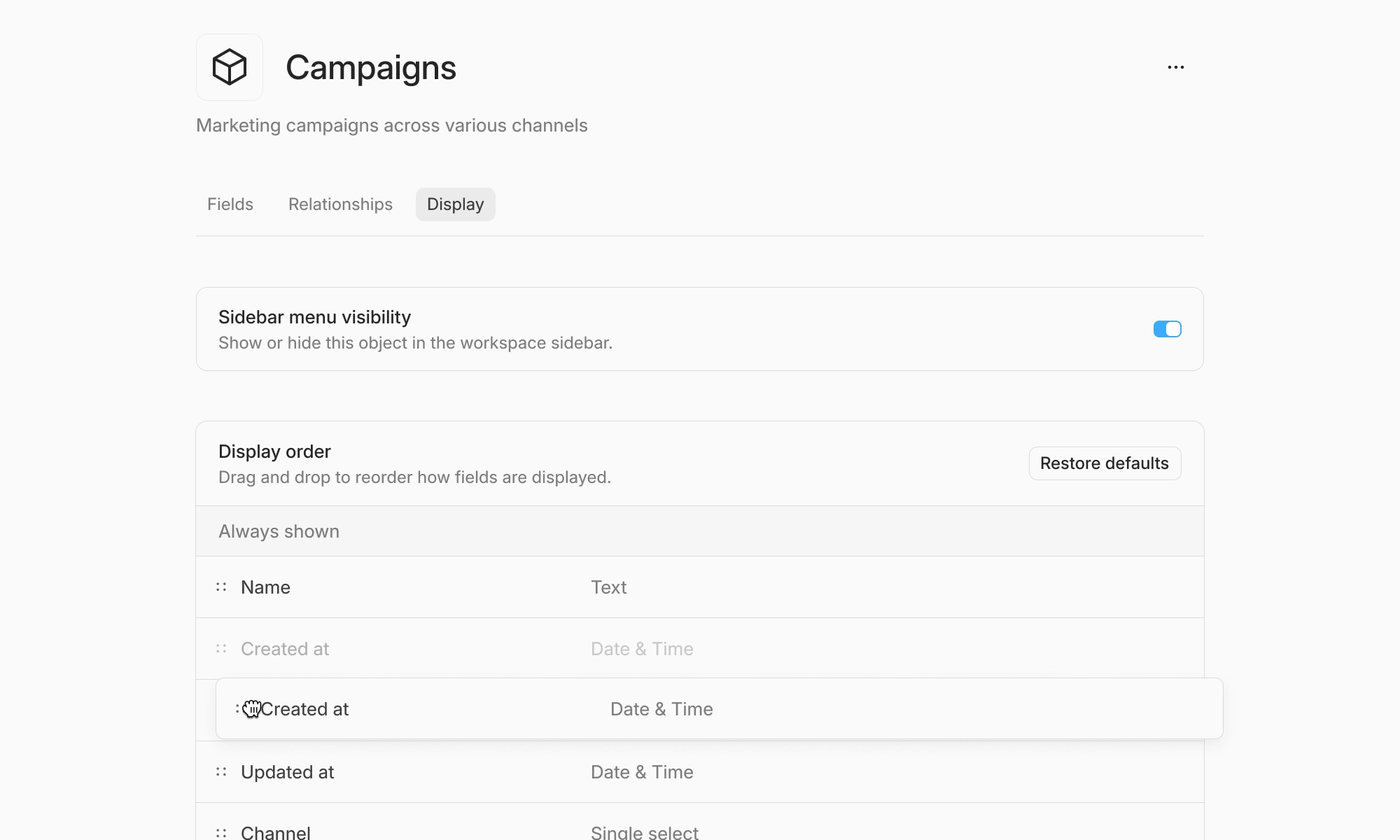
Open display settings
Go to Settings.
Select Data model.
Choose the object you want to configure.
Open the Display tab.
Only workspace admins can change these settings.
Show or hide an object in the sidebar
Use Sidebar menu visibility to control whether the object appears in the workspace sidebar.
Hiding an object from the sidebar does not delete the object or restrict access to its records. Members can still open the object through search, saved links, or direct URLs.
Change the field display order
Under Display order, drag fields into the order you want them to appear on record pages. Changes save automatically when you finish dragging a field.
Fields are divided into two sections:
Always shown: These fields appear immediately in the record details.
Collapsed by default: These fields are collapsed under See more by default.
Drag fields between the sections to control which fields are immediately visible. At least three fields must remain in Always shown, but the Collapsed by default section can be empty.
Objects with fewer than three fields display a single re-orderable list without separate sections.
Restore the default order
Select Restore defaults to return fields to their original order.
This action restores the field order only. It does not change sidebar visibility.
What happens when a new field is created?
New fields are added to the end of the display order. When the object uses the expanded and collapsed sections, new fields appear under Collapsed by default until an admin moves them.
Troubleshooting
I don’t see the Display tab
Confirm that you are a workspace admin. Display settings may also be unavailable if the feature has not yet been enabled for your workspace.
My changes did not save
A confirmation message appears after a change is saved. If you see Could not save display changes, wait a moment and try again. Refresh the page to restore the latest saved configuration.
Does this change relationships?
No. Display settings currently control field order and sidebar visibility only. They do not change relationship tabs, relationship sections, or relationship visibility.