Custom Objects
Last updated: July 18, 2026
Custom objects let you define new record types tailored to your business - things like Campaigns, Vendors, or Properties - that sit alongside built-in records like Accounts, Contacts, and Opportunities.
What custom objects are
A custom object is a record type you define yourself. Built-in objects (Accounts, Contacts, Opportunities) cover the standard CRM data model. Custom objects extend that model when your business needs to track something the standard objects don't represent.
Common examples:
Campaigns - to track marketing efforts across multiple accounts
Vendors - to track third-party suppliers separately from customer accounts
Properties - for real estate teams tracking listings
Projects - to organize work that spans multiple accounts
Assets - to track equipment, software licenses, or physical inventory
Once a custom object is created, it works like any built-in object. You can add records, define custom fields, build relationships to other objects, and reference the records in views, filters, and reports.
Plan availability and permissions
Custom objects are available on the Pro plan.
Only workspace admins can create and manage custom objects. Once created, custom objects and their records are visible to all workspace members.
How to create a custom object
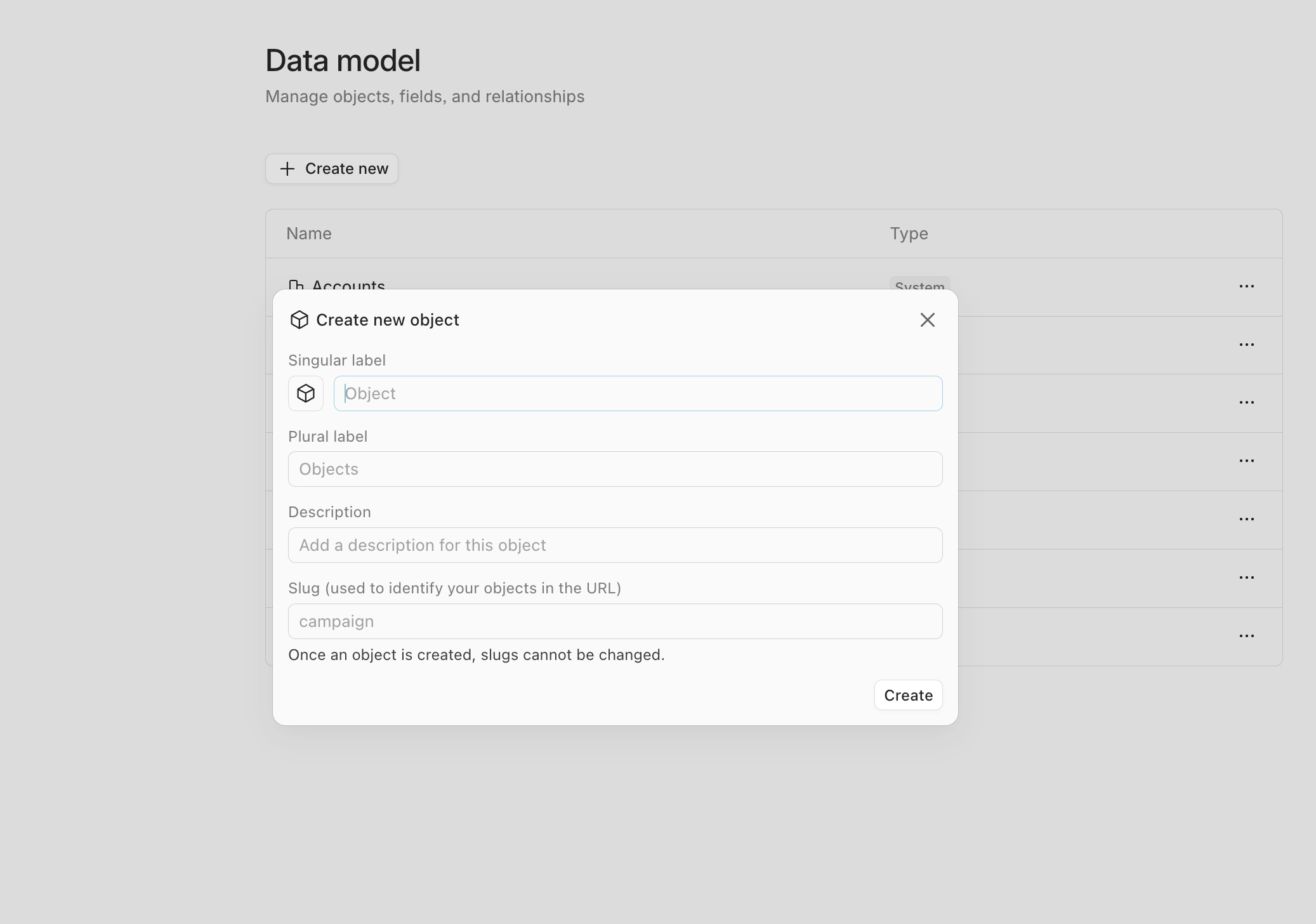
Go to Settings → Data model.
Click Create new.
Fill in the details in the modal:
Name (singular) - the name for a single record of this type, for example
Campaign. Required.Name (plural) - auto-filled based on the singular name (for example
Campaigns). Edit it if the auto-plural is wrong.Description - a short note about what this object represents. Only visible in settings.
Slug - a URL-safe identifier auto-generated from the singular name (for example
campaign). You can edit it before saving. Slugs can't be changed after the object is created, so choose carefully.Icon - pick an icon to visually identify this object type across the app.
Click Create.
The new object appears in the Data model table. Open it to add fields, configure relationships, and start adding records.
What's included by default
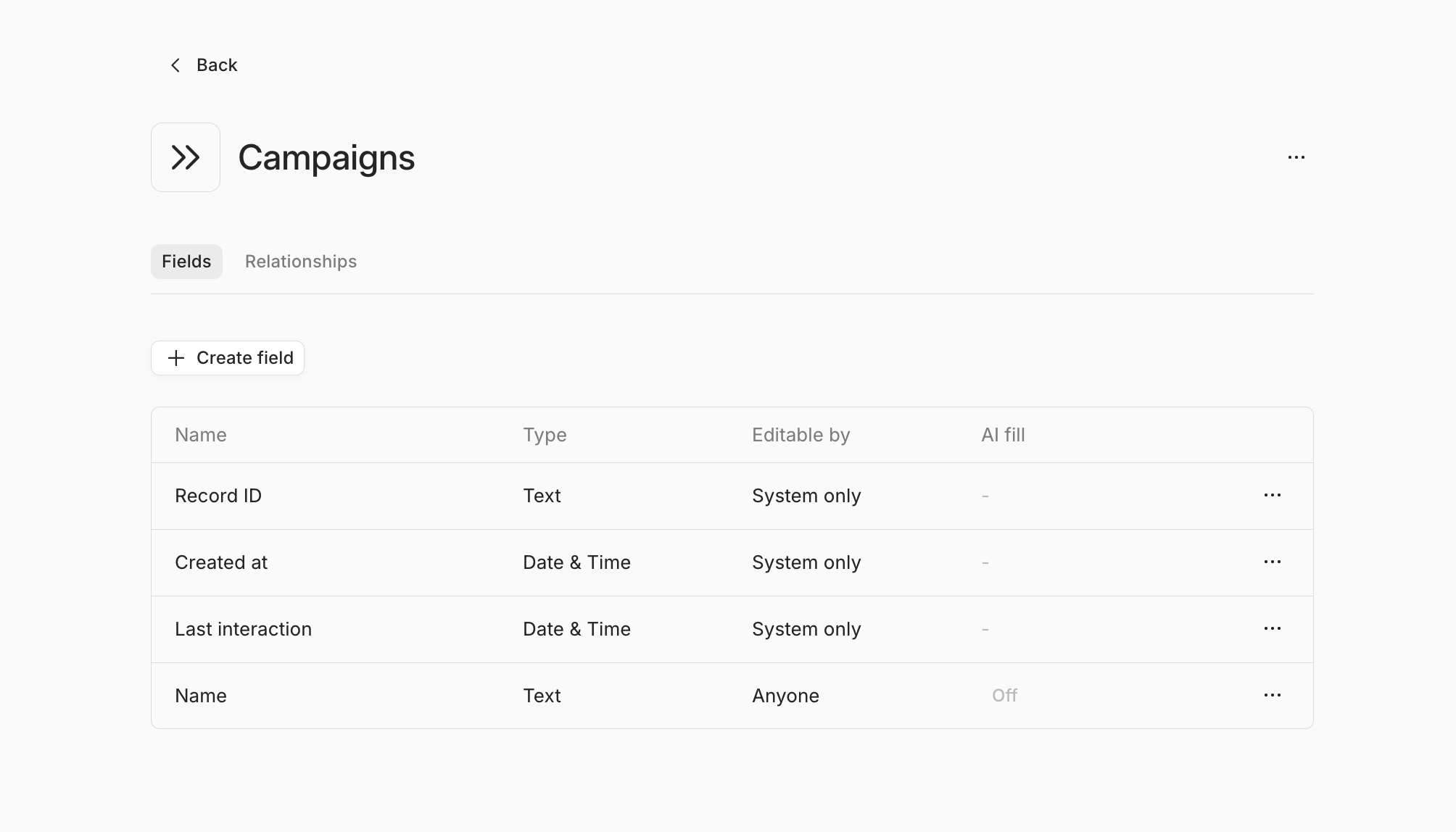
Every custom object comes with a Name field and 3 system fields:
Record ID - a unique identifier auto-assigned to each record
Created at - timestamp when the record was created
Last interaction - timestamp of the most recent activity on the record
Every new custom object also comes with three built-in relationships: Notes, Tasks, and Lists.
These are included because they're useful for almost any kind of record. Regardless of what the object represents, you'll typically want to jot down notes, track follow-up tasks, and organize records into lists. They're wired up automatically so you don't set them up manually.
These three relationships are managed by the system and can't be removed.
Managing custom objects
Edit object details
You can edit the name, plural name, description, and icon at any time after creation. The slug is permanent.
To edit:
Go to Settings → Data model.
Click on the custom object you want to edit.
Update the fields.
Save.
Archive a custom object
If you no longer need a custom object, you can archive it from Settings → Data model.
Archived objects are hidden from the app but can be restored at any time. Records aren't deleted when an object is archived.
Common questions
Can I rename or update a custom object after creating it?
Yes. You can edit the name, plural name, description, and icon at any time. The slug is permanent.
What happens if I no longer need a custom object?
You can archive it from Settings → Data model. Archived objects are hidden from the app but can be restored at any time. Records aren't deleted when an object is archived.
Can I add custom fields to a custom object?
Yes. After creating the object, open it from the Data model table and add fields the same way you would on a built-in object.
Can I link custom objects to built-in objects?
Yes. You can create relationships between any combination of custom and built-in objects. See Relationships in custom objects for the full walkthrough.
Who can see records in a custom object?
All workspace members can see custom objects and their records once created. Only workspace admins can create or modify the object itself.