How to import data from your existing CRM using CSV
Last updated: April 30, 2026
You can import your existing CRM data into Lightfield using CSV files. This works for contacts, accounts, and opportunities.
How to import CSV data
To import your data:
Navigate to your Accounts, Contacts, or Opportunities view
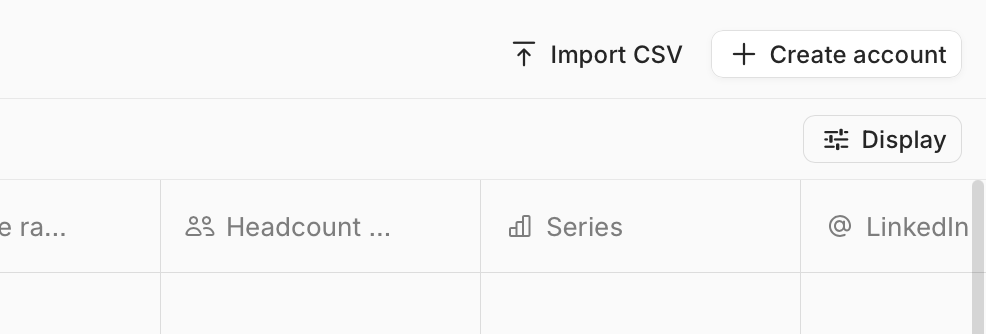
Look for the "Import CSV" option
Upload your CSV file and map the fields accordingly
Setting up custom fields before import
If your CSV contains custom fields that don't exist in Lightfield yet, you'll need to create them first:
Go to Settings > Data Model
Add the custom fields you need before importing
Configure field types, descriptions, and AI autofill settings as needed
The import process will only recognize fields that already exist in your Lightfield data model, so creating them beforehand ensures a smooth import.
Importing opportunities with custom stages
If you've customized your opportunity stages, the CSV import will use your custom data model rather than default stages. Make sure your CSV includes the correct stage names that match your configured stages in Lightfield.
Handling enrichments during import
When importing data:
If you import a field with existing data, those enrichments will be preserved
If you have an empty column but click "Map anyway", Lightfield can perform its own enrichment on that field
You can always update enrichments later using Lightfield's AI tools
Alternative: Manual import assistance
If you encounter issues with CSV import or have complex data migration needs, the Lightfield team can assist with manual data import. Contact support to discuss having your data imported directly into your workspace.