Lightfield Setup Guide
Last updated: July 8, 2026
Getting Started with Lightfield
Lightfield is a CRM that builds itself from your emails, calendar, and meetings. Once it's set up, you can ask it questions about your customers, draft follow-ups based on what was actually said, and stop worrying about whether you're forgetting to follow up with someone.
Here's how setup works:
Step 1: Initial setup (5 minutes)
Connect your email and calendar, turn on the meeting recorder, and start using Chat.
Step 2: Personalize your workspace (25 minutes)
Add context about your company and customize your data model. This helps Lightfield give you better answers and track the data you need to build your business.
Step 3: Import Your data (1 hour)
Bring in accounts, contacts, and deals from other systems
--
Our recommendation - start with initial setup, then try out chat and run a few meetings with Lightfield. You can come back to the rest whenever you're ready.
Initial Setup
Time required: 5 minutes
Steps:
Connect your email and calendar
Configure meeting recording
Test Lightfield Chat
Connect Your Email and Calendar
Lightfield pulls in your email history and automatically creates accounts and contacts based on who you've been corresponding with. Your meetings get linked to the right accounts and contacts, and you'll start receiving meeting prep emails before external calls.
How to Connect Your Account
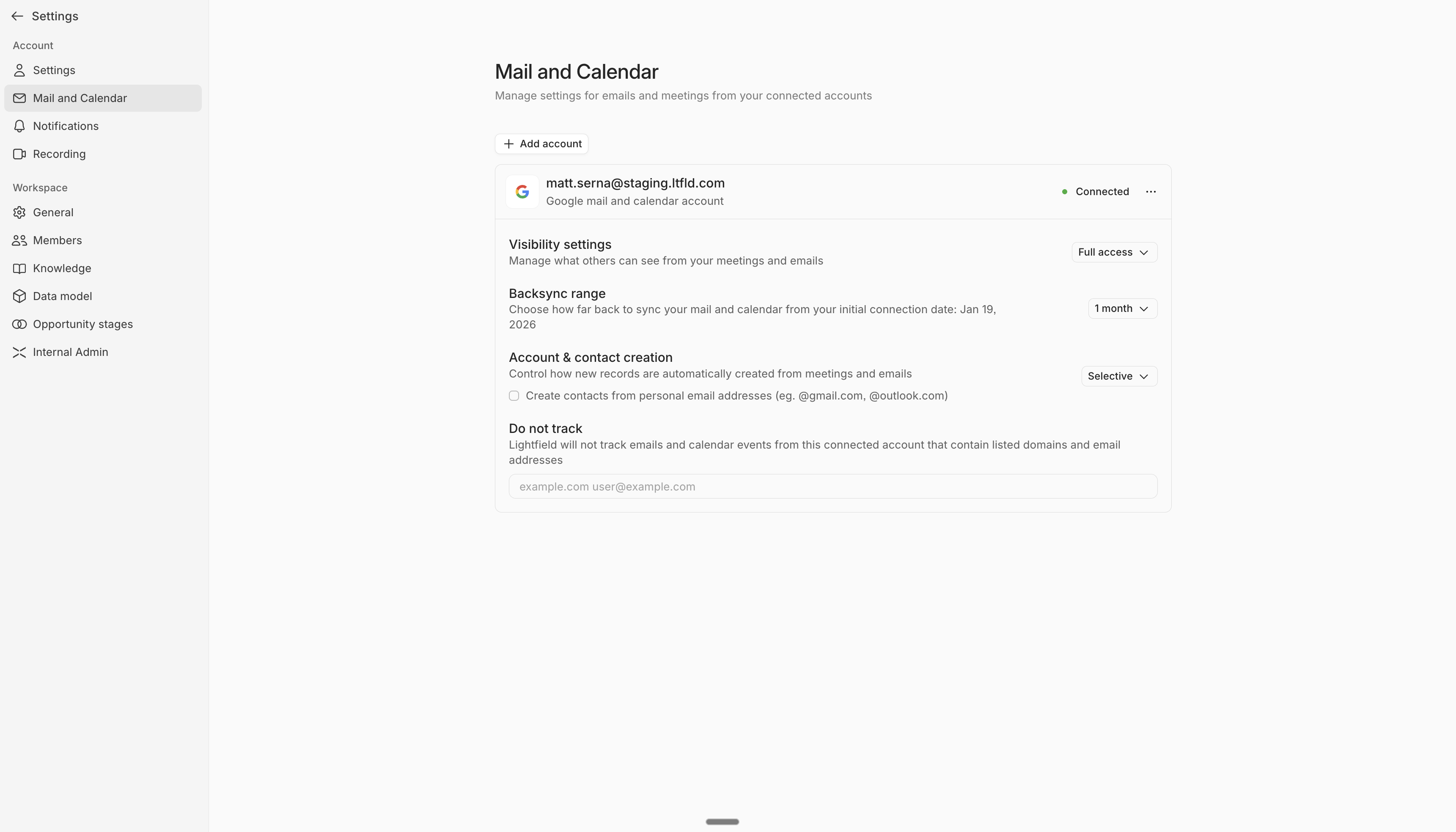
Go to Settings → Account -> Mail and Calendar
Click 'Add account'
Click 'Continue with Google' or 'Continue with Microsoft'
Approve requests for access permissions from your email provider when prompted.
In this interface, you can customize which emails sync into Lightfield and what's visible to others in your workspace.
Visibility settings: Choose whether or not other users have access to meetings and emails from your account.
Backsync range: Choose how far back to sync your mail and calendar from when you connected.
Account & contact creation: Control how new records are created.
Do not track: Select emails or domains that you do not want to sync into Lightfield or record meetings for.
If you have multiple email accounts (personal and work), we recommend connecting them both - so long as they all have context related to your business. More history gives Lightfield more to work with.
Enable and Configure Your Meeting Recorder
Lightfield will automatically join your Zoom, Google Meet, or Teams calls. After each call, you'll get a full transcript, a summary, and suggested action items.
How to Enable the Meeting Recorder
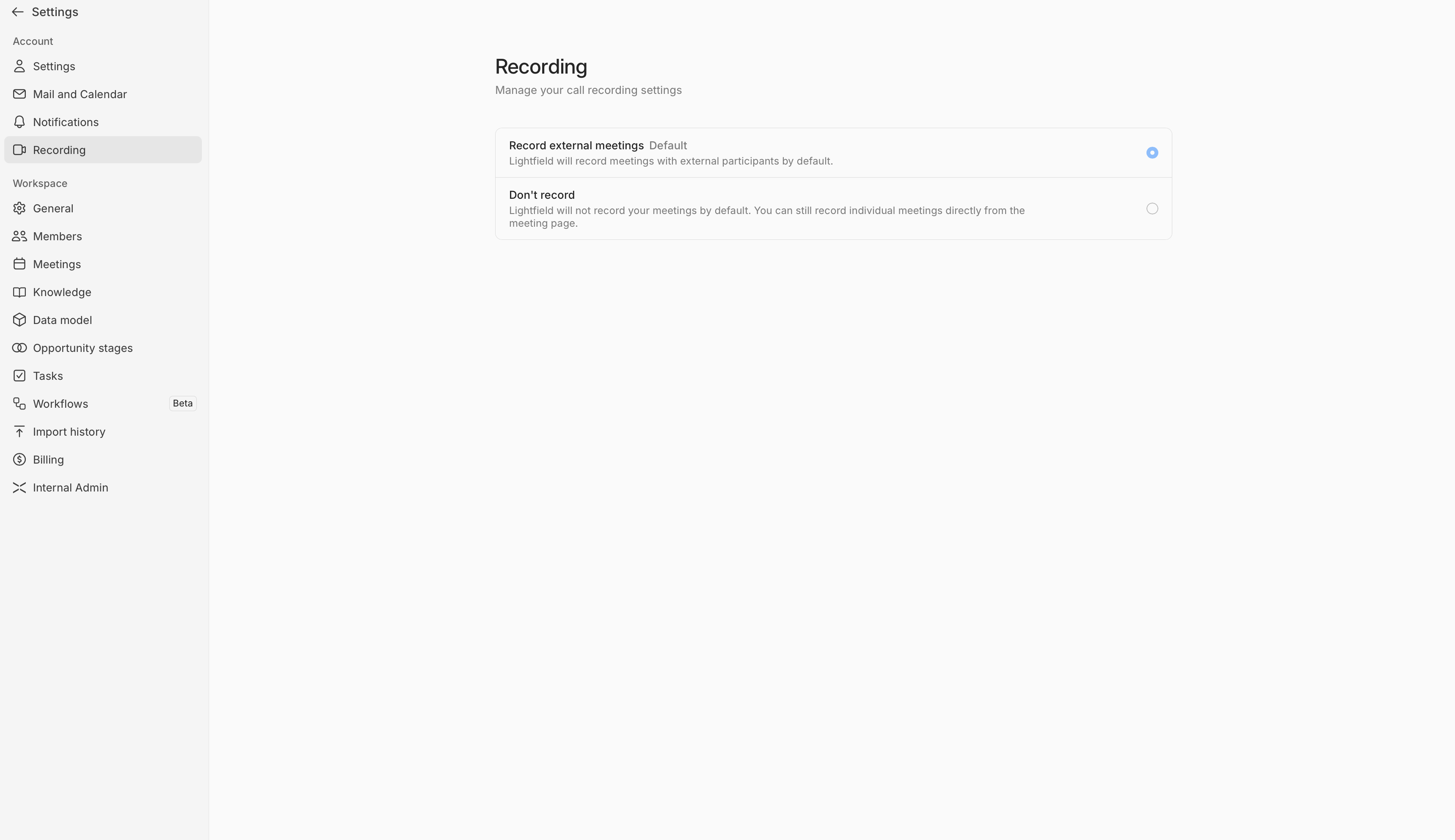
Go to Settings → Account -> Recording
Select "Record external meetings"
Note: If you select 'don't record', you can still record meetings, but will need to manually ask the Lightfield meeting recorder to join for each meeting.
How to customize your meeting recorder
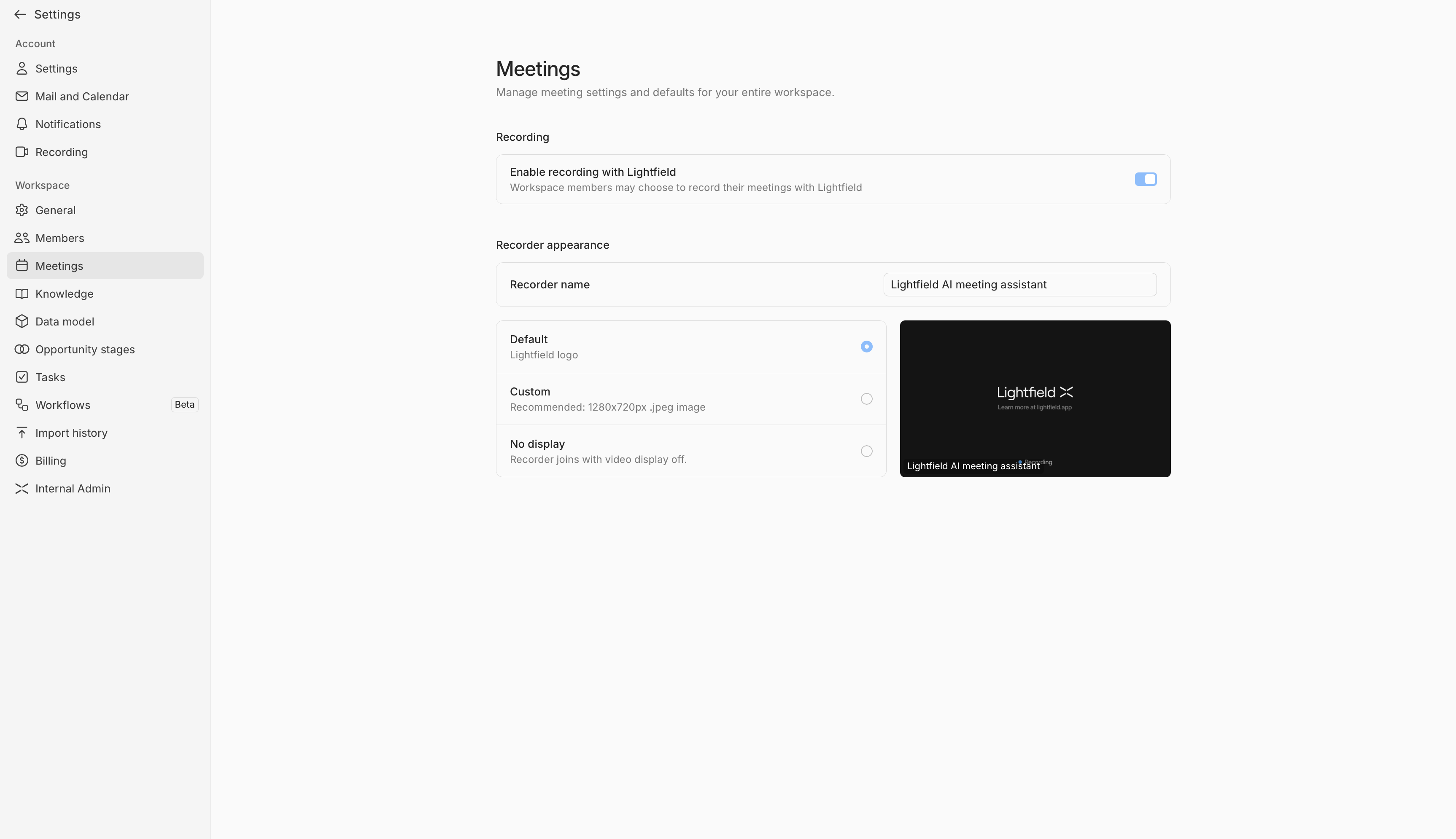
Go to Settings → Workspace -> Meetings
Here, you can change the appearance of your meeting recorder in meetings - including the name and image.
Test Lightfield Chat
Chat is how you interact with Lightfield day-to-day. Now that your data is connected, open it and try a few queries. Chat can be accessed on the sidebar under "Chats", or on the bottom of your interface with interacting with an account, contact, opportunity, or meeting.
Chat can be used to answer any questions about your business.
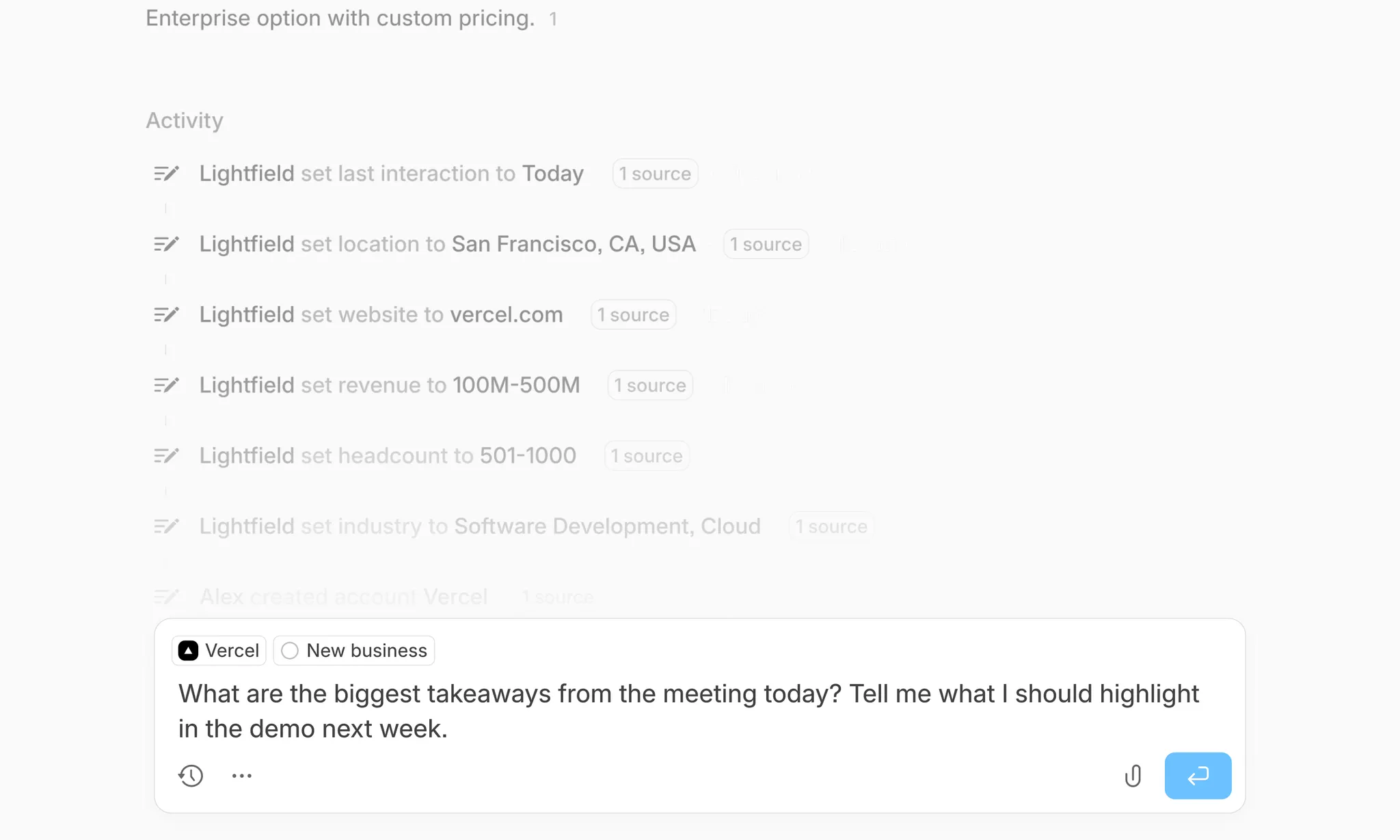
It can also be used to do work for you.
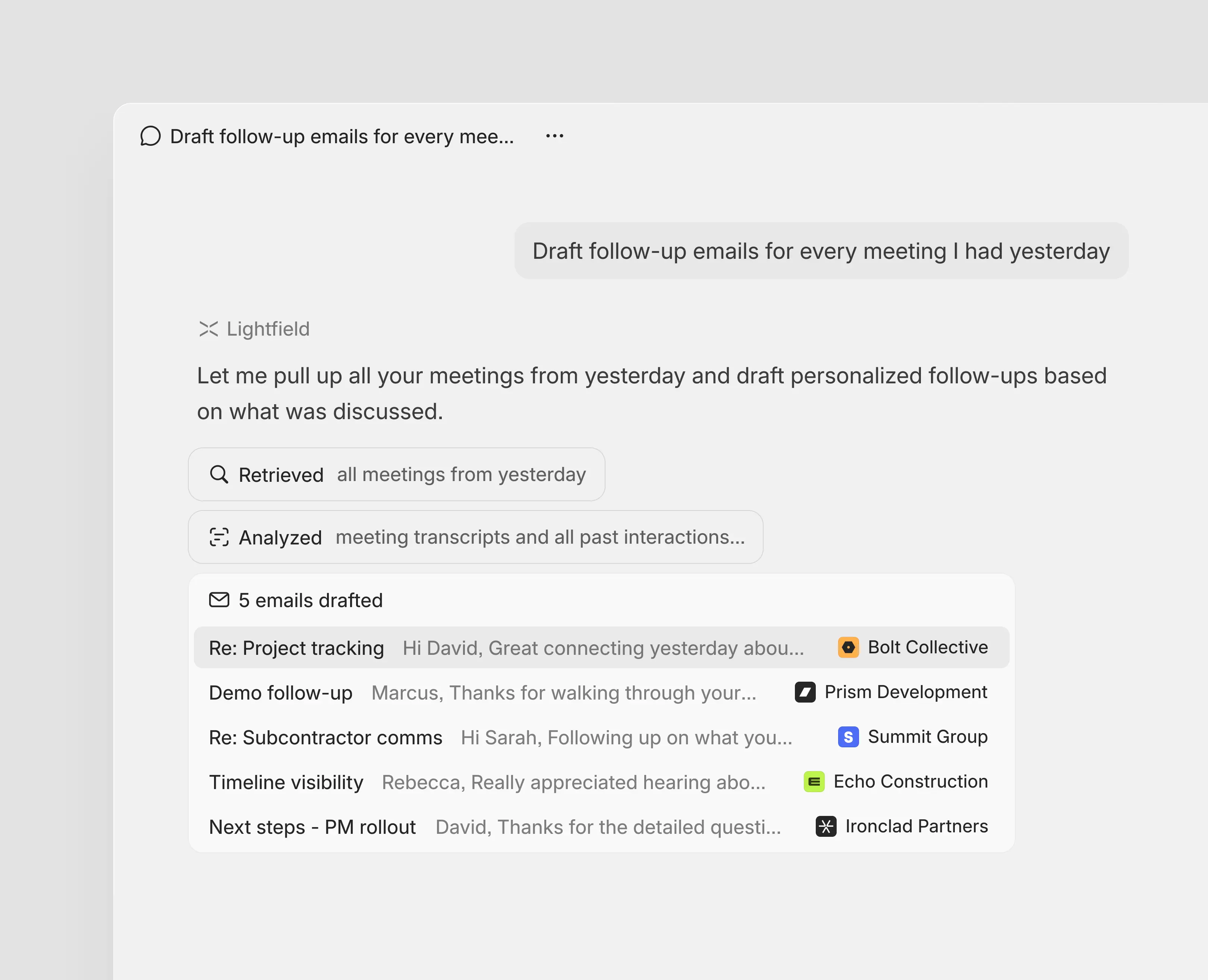
Some example prompts to get you started:
What patterns or trends can you spot in our most recent prospect and customer interactions?
Find everyone I need to follow up with.
Where should I focus my time this week?
The teams who get the most out of Lightfield are the ones who make Chat part of their daily routine. Ask it something every day.
Personalize your Workspace
Once you're comfortable with the basics, these steps help train Lightfield's AI with your business context.
Time required: 25 minutes
Steps:
Configure your knowledge base
Update your data model
Update opportunity stages
Configure Your Knowledge Base
Context from your Knowledge Base shapes how Lightfield creates meeting prep documents and summaries, draft emails and answers questions in Chat. Start with the basics and add more over time.
Go to Settings → Workspace -> Knowledge
Add information about your company. We recommend starting with:
A company overview
An overview of your product
Answers to the questions that most people ask you on calls.
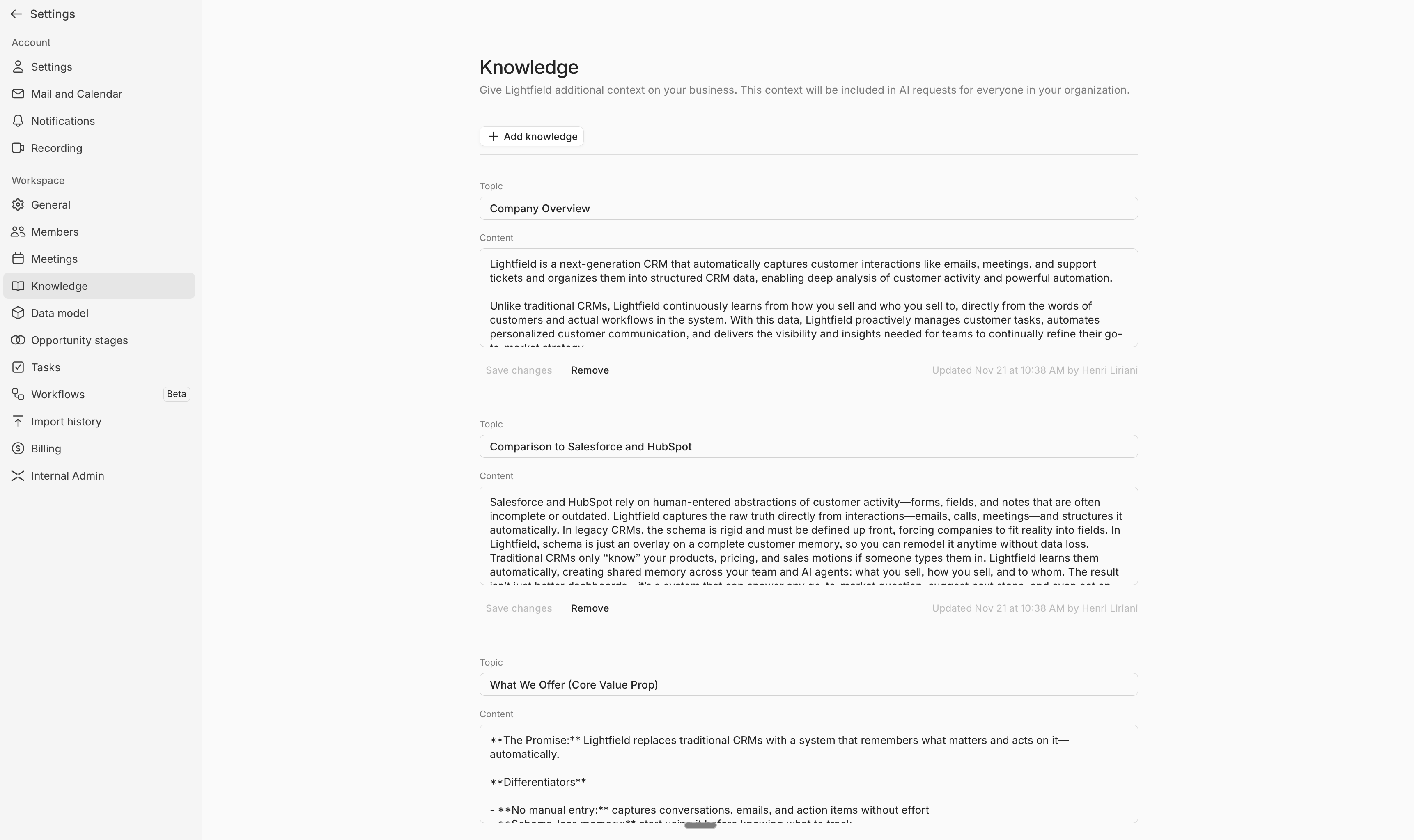
Over time, you can also add things like your brand voice, preferred email tone, and even how you would like for the agent to communicate with you.
If you’re short on time and don’t have an existing knowledge base to pull from, try using Claude to generate a knowledge base for you based on your website. The following prompt works for the startups we’ve helped onboard with:
You are an expert in training AI systems, and are tasked with configuring a knowledge base to train an AI CRM on my company. Can you analyze our website, [WEBSITE], and draft this for me? Contents should include a high level summary of who we are as a company, what we sell, our positioning versus competitors, and our brand voice and tone.
Update Your Data Model
Your data model consists of the fields Lightfield tracks and fills out across accounts, contacts, and opportunities.
We’ve included a number of common fields out-of-the-box. To change these fields:
Go to Settings → Data model
Review the default fields (name, industry, stage, etc.)
Click Create field
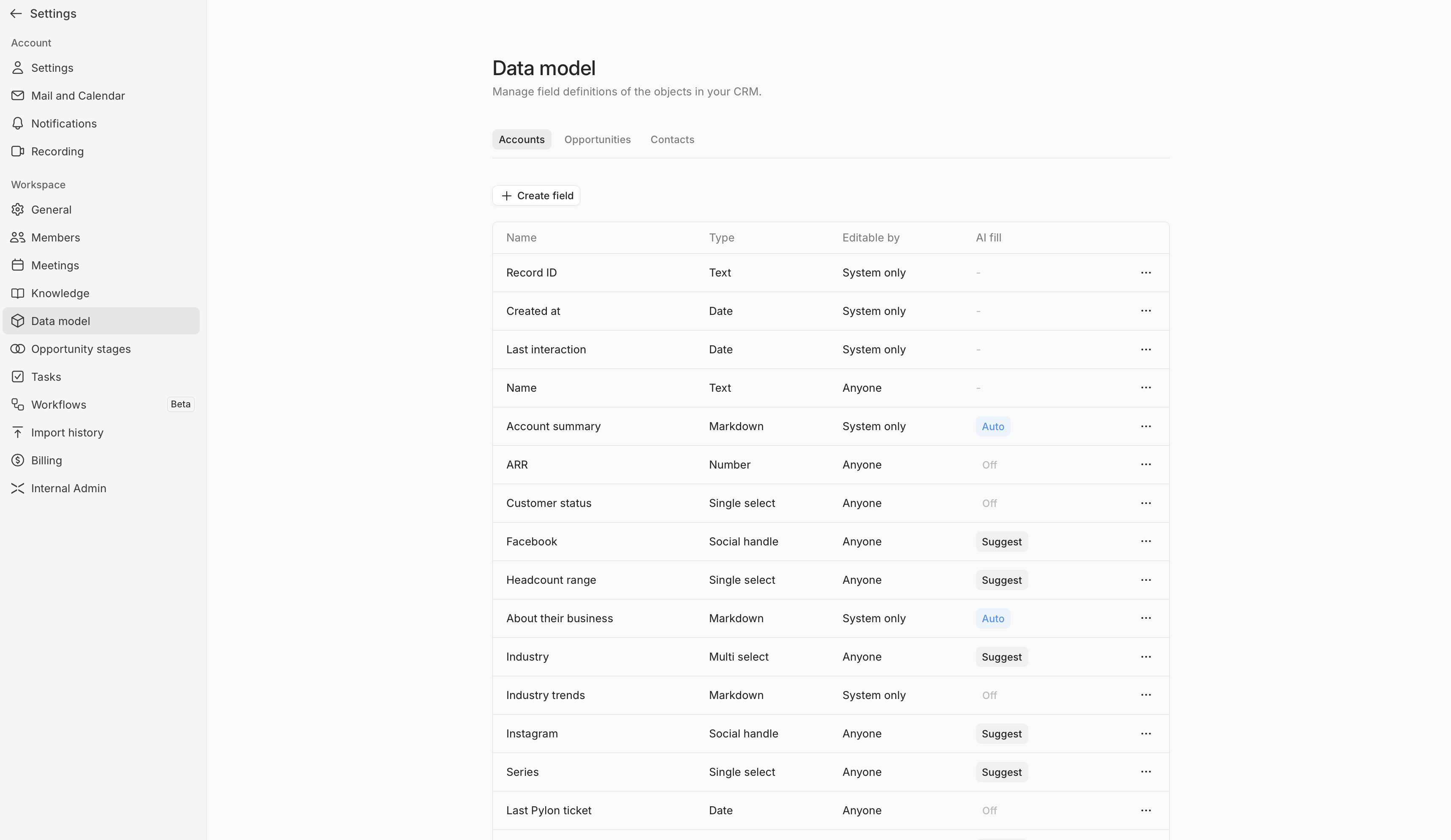
If you would like for Lightfield's AI to populate the field, you can give it context to guide the platform on what to listen for.
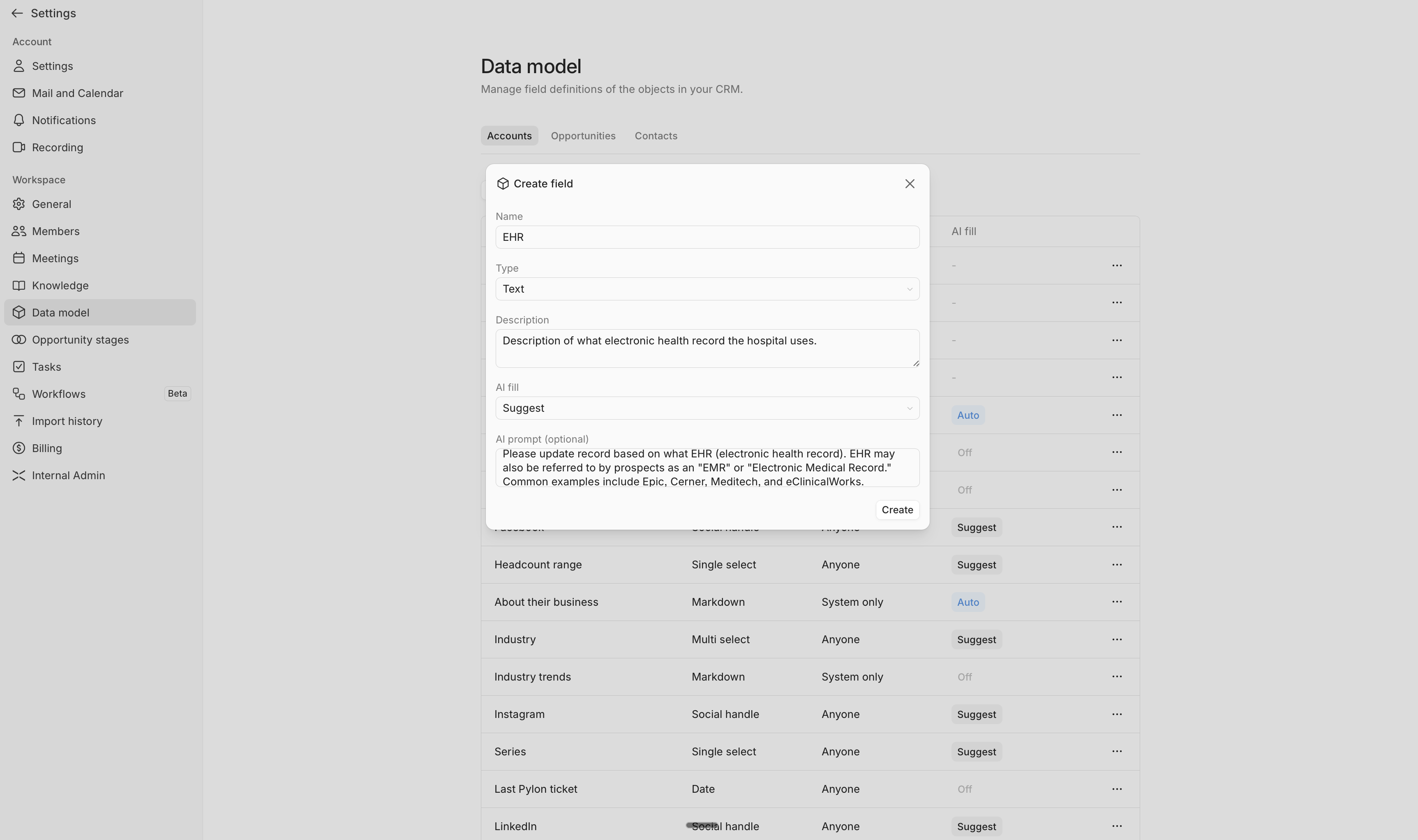
Once you add a field, Lightfield starts extracting that information from your conversations automatically, and will backfill records based on the context it can pull from your email and meetings. You can also query these fields in Chat.
Update Opportunity Stages
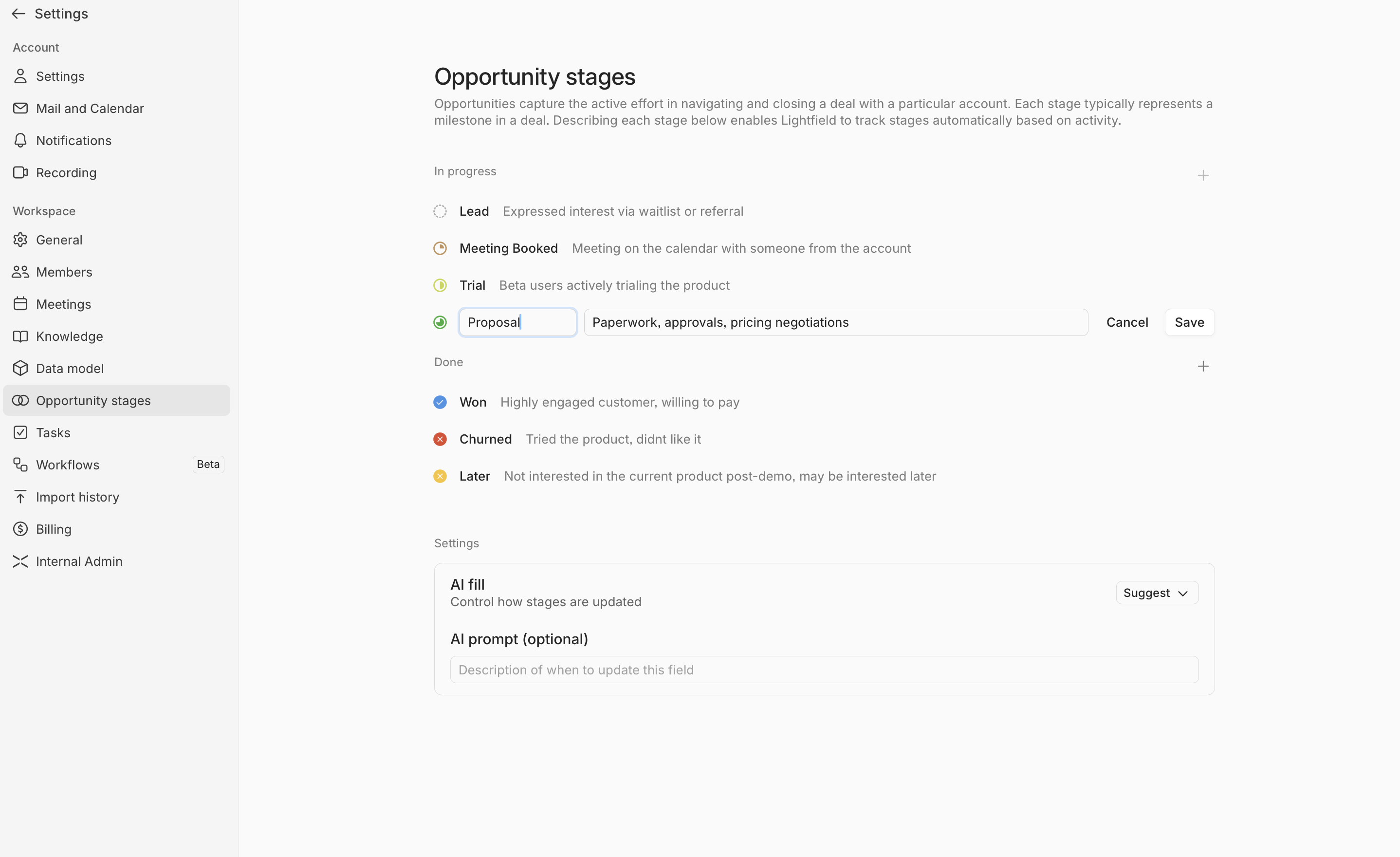
Opportunity stages represent discrete, repeatable steps in your sales process. if you don't have a sales process quite yet, we recommend using the out-of-the-box stages that we've included in Lightfield. Otherwise, you can easily customize these stages to meet your needs as detailed below.
Go to Settings → Workspace -> Opportunity stages
Review the out-of-the-box opportunity stages. 'In progress' stages refer to deals that are actively being worked. 'Done' stages refer to opportunities that are done being worked.
To add a new stage, click the + button.
To edit a stage, hover over it, click the three dots on the right, and make changes to the name or description as needed.
Import Your Data
If you have data from other systems (or a spreadsheet), it's easy to import it into Lightfield.
Time required: 1 hour
Steps:
Upload records
Connect external systems
Do this when you're ready to bring in your existing accounts, contacts, and deals - and connect Lightfield to other systems in your stack.
How to Import Your Data
Lightfield supports data import via chat. Simply upload your file in chat and let the Lightfield agent migrate your data for you.
How to connect external systems
You can connect external systems to Lightfield by configuring Webhook event listeners in our Workflow Builder tool.
Workflow Builder can be accessed by admins via Settings -> Workspace -> Workflows.
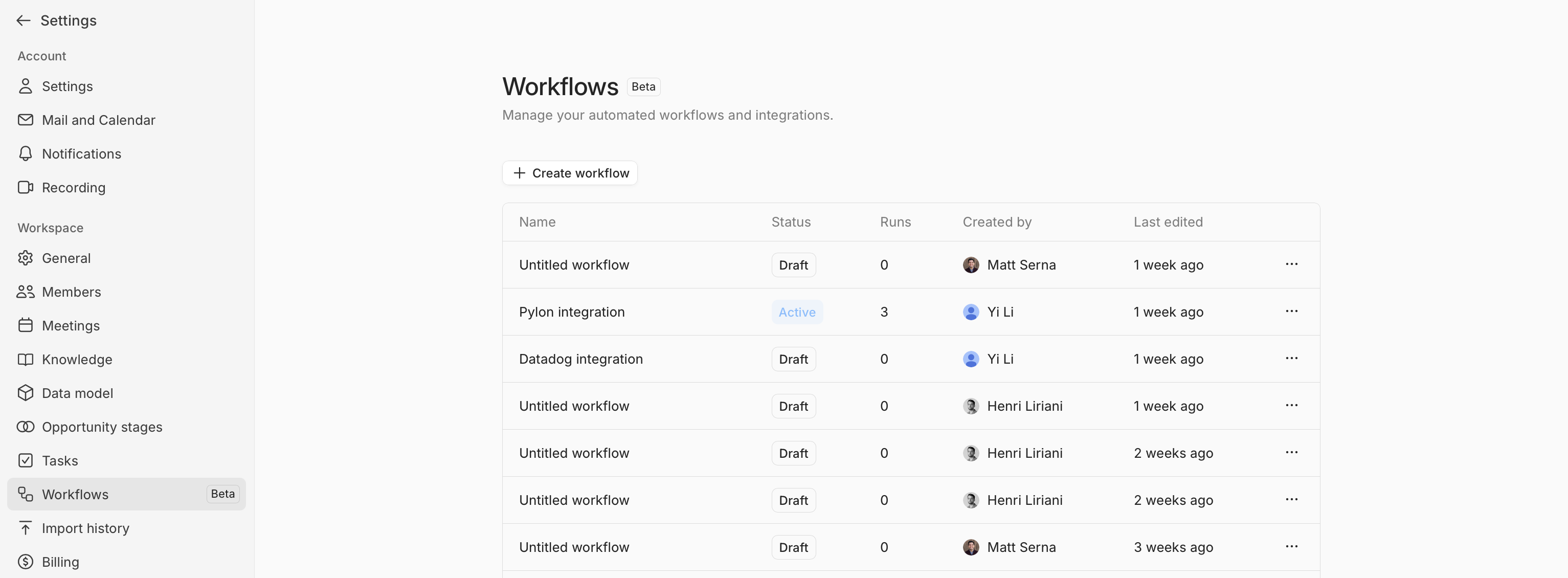
To learn how you can configure workflows, reference our article, Configuring workflows in Workflow Builder.
Common Chat Use Cases
Chat is where Lightfield power users get the most value from the platform. See below for a sample set of prompts that Lightfield customers use most while working within their CRM.
Finding Accounts & Contacts
"What accounts have I met with this month?"
"Who haven't I talked to in 2 weeks?"
"Show me accounts in [industry]"
"What deals are in Proposal stage?"
"List my accounts with no recent activity"
"Which contacts are at [company]?"
"Find accounts with revenue over $10M"
"Show me Series A companies in my pipeline"
"Who are the decision makers at [company]?"
"What accounts did we create last week?"
"Show me churned opportunities this quarter"
"List all contacts I've emailed recently"
Getting Context
"What does [company] care about?"
"Summarize my relationship with [name]"
"What did [name] say about pricing?"
"What's the history with [company]?"
"What objections has [company] raised?"
"What competitors is [company] evaluating?"
"What's the next step with [company]?"
"When did we last meet with [company]?"
"What was discussed in my last call with [name]?"
"What does [company] use for their current CRM?"
"Who else from [company] have we spoken to?"
"What's [company]'s timeline for a decision?"
Taking Action
"Create an opportunity for [company]"
"Draft a follow-up email to [name]"
"Create a task to follow up with [name] next week"
"Update [opportunity] to Proposal stage"
"Create a new account for [company]"
"Add [name] as a contact at [company]"
"Update the close date to [date]"
"Set the deal amount to $X"
"Mark this task as complete"
"Add [competitor] to the competitors field"
"Update the next steps for [opportunity]"
"Draft a proposal email to [name]"
"Create a task to send contract by Friday"
Finding Patterns
"What features do prospects ask about most?"
"What objections have I heard this month?"
"Why are deals stalling?"
"What do my best customers have in common?"
"What are common reasons for churn?"
"Which referral sources bring the best leads?"
"What industries convert best?"
"How long is our average sales cycle?"
"What pricing concerns come up most?"
"What competitors do we lose to most often?"
"What do trials that convert have in common?"
Calendar & Scheduling
"What meetings do I have this week?"
"When am I free tomorrow afternoon?"
"What's on my calendar Thursday?"
"Do I have any conflicts next Tuesday?"
"Propose meeting times for next week"
Reporting & Analysis
"How many signups did we get today?"
"How many deals are in each stage?"
"What's our pipeline value?"
"How many accounts are trialing?"
"List won deals this month"
"What's the total ARR of our customers?"
"How many meetings did I have last week?"
Preparation & Summaries
"Prepare me for my call with [company]"
"What should I know before meeting [name]?"
"Summarize today's meetings"
"What happened in my calls yesterday?"
"Brief me on [company]'s recent activity"
Bulk Operations
"Update all these opportunities to [stage]"
"Create tasks for each of these accounts"
"Draft emails to all contacts who [criteria]"
Getting Help From Our Team
If you get stuck or have questions along the way, we're here to help.
The fastest way to get help is via your dedicated Slack channel (if you have one).
Otherwise, you can email support@lightfield.app with questions, or set up time with our team here.