Configuring workflows in Workflow Builder (Beta)
Last updated: July 8, 2026
Workflow Builder allows you to create automated workflows that respond to external webhook events and take action on your data. This guide covers the building blocks of workflows and how to get started.
Note: Workflow Builder is available to workspace admins only.
Workflow Building Blocks
A workflow automates tasks by connecting a trigger to a series of steps. Each part produces variables that can be used in later steps.
Triggers
The trigger defines what starts your workflow. Available triggers are Records, Utilities, Meetings, Tasks and Notes ('Record' refers to a record in an Account, Contact, Opportunity):
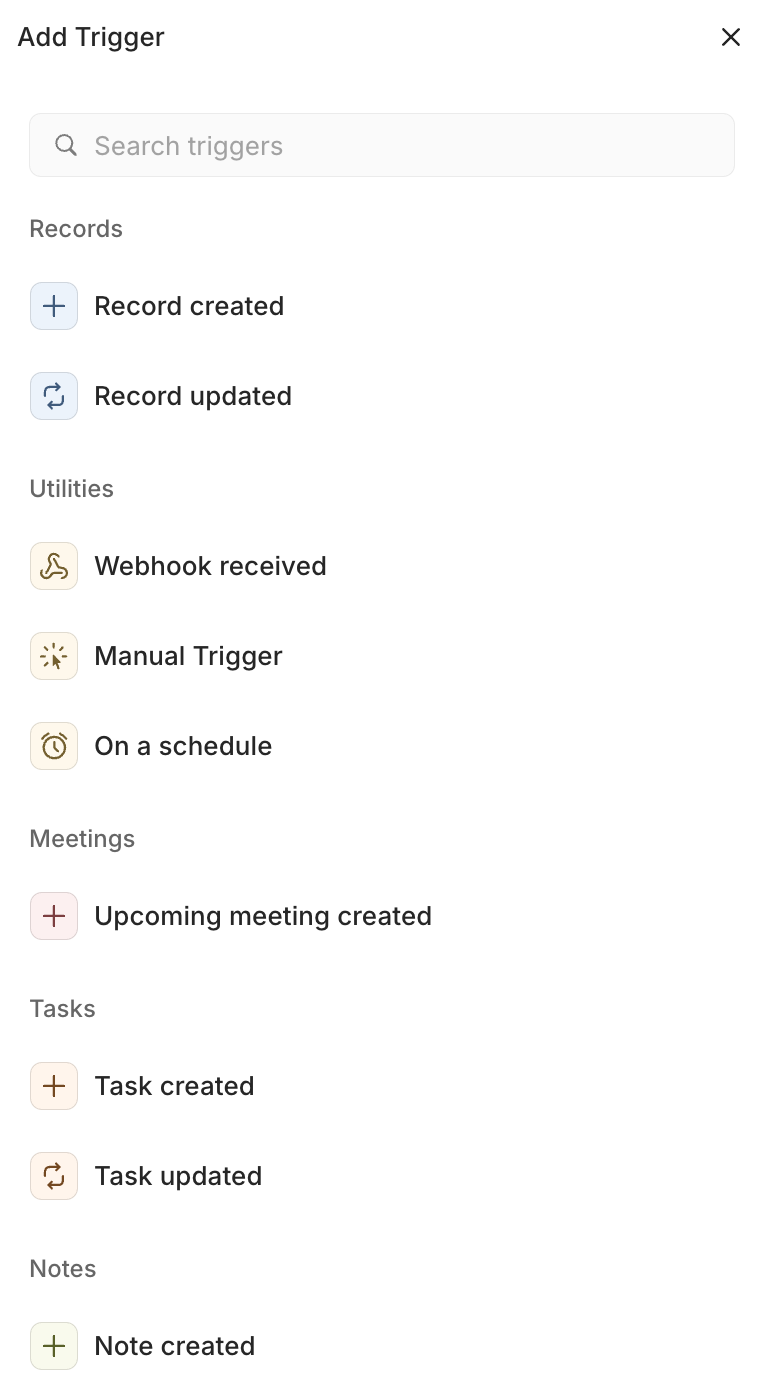
Steps
Steps are the actions your workflow performs after it starts. Add multiple steps to build a complete automation. Available steps include:
Step Description | |
Create or update record | Create a new record, or update it if it already exists (Account or Contact) |
Create record | Create a new Account, Contact, or Opportunity |
Find records | Search for existing Accounts, Contacts, or Opportunities in your CRM |
Delay | Pause the workflow for a specified amount of time before continuing to the next step |
HTTP request | Send an HTTP request |
Find | Find a record in Lightfield |
Create Task | Create a new Task in the specified account |
Create Note | Create a new Note in the specified account |
Variables
Variables are dynamic placeholders that let you use data from the trigger and previous steps. For example:
Use data from the webhook payload in a "Create record" step
Reference a found record's email in a subsequent step
Pass trigger data through multiple steps
Variables appear as visual chips in text fields. Click the + Variable button next to any field to insert a variable from available sources.
Coming soon
We're actively developing new capabilities for workflows, including:
More CRM actions
Have feedback or feature requests? Let us know through email or your external Slack channel.
Getting Started with Webhook Triggers
The webhook trigger is a flexible way to connect external systems to your CRM. When another application sends data to your webhook URL, it automatically starts your workflow.
Step 1: Create a New Workflow
Navigate to Settings → Workflows
Click New workflow
Give your workflow a name and optional description
Step 2: Add a Webhook Trigger
Click on the trigger placeholder at the top of your workflow
Select Webhook received
Your unique webhook URL will be displayed it the step details panel
Step 3: Configure the Webhook
Webhook URL: Copy this URL and configure it in your external system (e.g., form provider, payment processor, marketing tool). Each workflow has a unique URL.
HTTP Method: Choose GET or POST depending on how your external system sends data. Most integrations use POST.
Example JSON: Provide a sample of the JSON payload your webhook will receive. This helps the workflow builder understand your data structure and makes variables available to use in steps.
Example payload:
{
  "contact": {
    "email": "jane@example.com",
    "name": "Jane Doe"
  },
  "source": "landing-page",
  "timestamp": "2024-01-15T10:30:00Z"
}Tip: Paste an actual payload from your external system to automatically detect all available fields.
After pasting your JSON:
Click Parse JSON to extract the fields from your payload
The parsed fields will appear as available variables you can use in steps
To rename a variable, click on its name and enter a more descriptive label (e.g., rename
emailtoCustomer email)
Renaming variables makes them easier to identify when mapping fields in later steps.
Step 4: Add Steps
Click Add step below the trigger
Choose an action (e.g., "Create record")
Configure the step:
Select the record type (Account, Contact, or Opportunity)
Map fields using variables from the trigger
Click the + button to insert webhook data into any field
Example: To create a contact from webhook data:
Add a "Create record" step
Select "Contact" as the record type
Map the Email field using the
Customer emailvariable output by your trigger stepMap the Name field using
Customer namevariable output by your trigger step
Step 5: Test Your Workflow
Before turning on your workflow, test it to make sure everything works:
Click Test run in the workflow header
The test will use your example JSON payload (or you can modify it)
Click Run workflow
Check the Recent runs section in the workflow details panel to see the result
Test runs execute all steps with real data, so they will actually create or modify records in your CRM.
Step 6: Activate Your Workflow
Once you're satisfied with your test results, click activate in the toolbar of the workflow page to start your workflow
Your workflow is now live and will run automatically whenever it receives a webhook event.
Viewing Workflow Runs
The Recent runs section in the right panel shows your workflow's execution history:
Status: Whether the run succeeded, failed, or is still in progress
Timestamp: When the run started
Details: Step-by-step execution details
If a step fails, the error details will help you troubleshoot the issue.
Best Practices
Test before activating: Always run a test to verify your field mappings work correctly.
Use descriptive names: Name your workflows and variables clearly.
Monitor your runs: Check recent runs periodically to catch any failures early.