How to reassign a call or meeting to a different account
Last updated: March 23, 2026
If a call or meeting has been automatically associated with the wrong account, you can reassign it to the correct account by adding the meeting participants as contacts to the target account.
Steps to reassign a meeting
Navigate to the account you want the meeting to be associated with
Add the meeting participants as contacts to this account by clicking the upper right arrow next to the X button
In the contact section that appears, add the relevant contacts from the meeting
Once the contacts are added to the account, the meeting will automatically be associated with the correct account
Adding contacts to an account
To access the contact management section of an account:
Open the account record
Click the upper right arrow next to the X button
This will reveal the contact section where you can manage contacts associated with the account
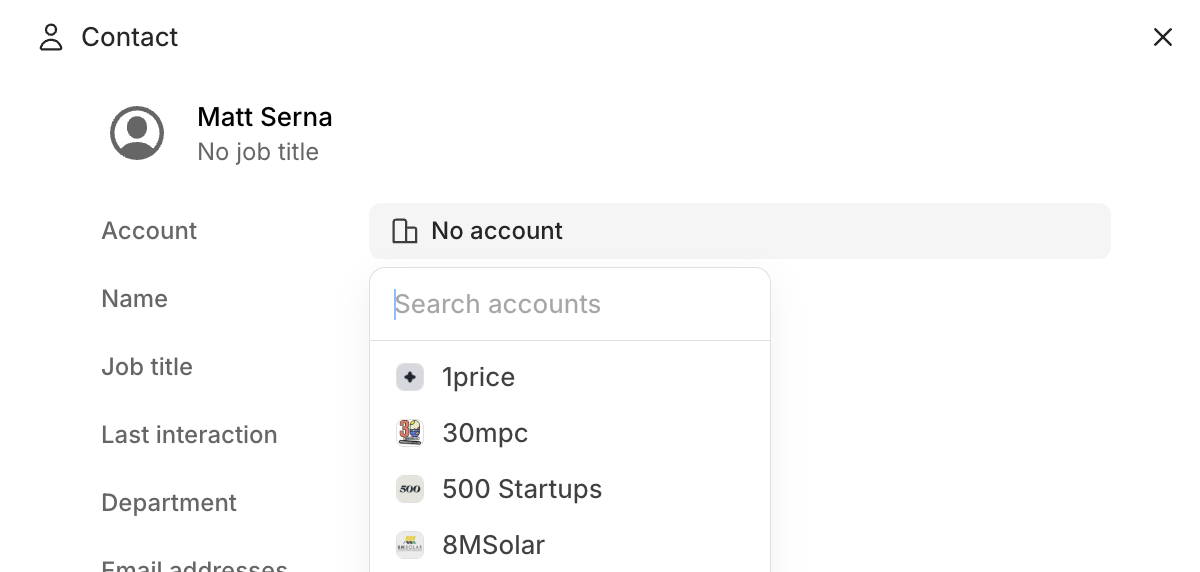
You can also attach accounts to existing contacts using the contact editor, which includes a dropdown list of available accounts to choose from.
The system is designed to be account-based for B2B companies, so meetings are automatically associated with accounts based on the contacts who participated in the call.