How to import data from your existing CRM using CSV
Last updated: March 31, 2026
You can import your existing CRM data into Lightfield using CSV files. This works for contacts, accounts, and opportunities.
How to import CSV data
To import your data:
Navigate to your Accounts, Contacts, or Opportunities view
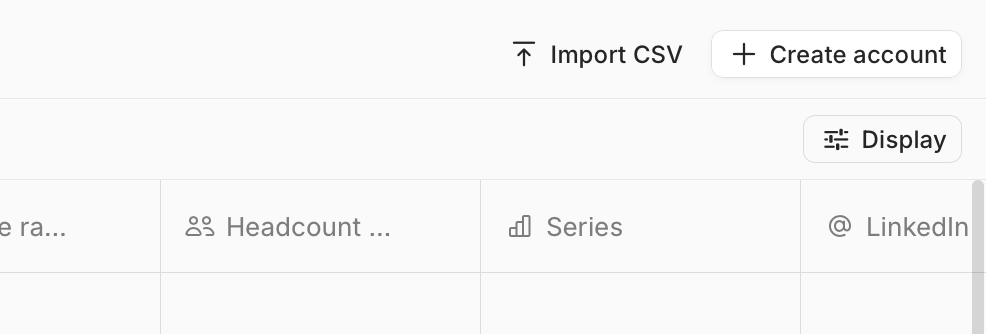
Look for the "Import CSV" option
Upload your CSV file and map the columns to Lightfield fields
Setting up custom fields before import
If your CSV contains custom fields that don't exist in Lightfield yet, you'll need to create them first:
Go to Settings > Data Model
Add the custom fields you need for your data
Then proceed with your CSV import
Currently, Lightfield doesn't auto-create new fields during CSV import, so this step is required for any custom data you want to preserve.
Working with custom stages and fields
When importing opportunities, Lightfield will use your customized data model, including any custom stages you've created. If you encounter issues where only default stages appear during import, this may indicate a temporary system issue that should resolve automatically.
Alternative: Manual data entry
If CSV import becomes too complex for your needs, you can always add records manually. This gives you more control over the data entry process and allows you to customize fields as you go.
Getting help with large imports
For complex migrations or large datasets, the Lightfield team can assist with manual imports. Contact support if you need help importing data from systems like Pipedrive, Attio, or other CRMs.