Syncing additional mail and calendar accounts
Last updated: May 22, 2026
Lightfield connects to your email and calendar to automatically assemble your CRM, turning your communications into structured accounts, contacts, and meetings.
You can connect more than one email or calendar account (for example, your individual work address and a shared inbox) to capture every customer interaction in one place.
This guide will help you:
Add an additional mail or calendar account
Manage existing connections
Adjust sync, visibility, and record-creation settings
Add an additional account
You can connect new accounts anytime after onboarding.
Go to Settings → Mail and Calendar
Click Add account
Choose the email address you want to connect
Grant permission so Lightfield can securely sync contacts, emails, and meetings
Once connected, the new account will appear in your Mail and Calendar settings, where you can manage sync preferences for each one independently.
Manage sync preferences for each account
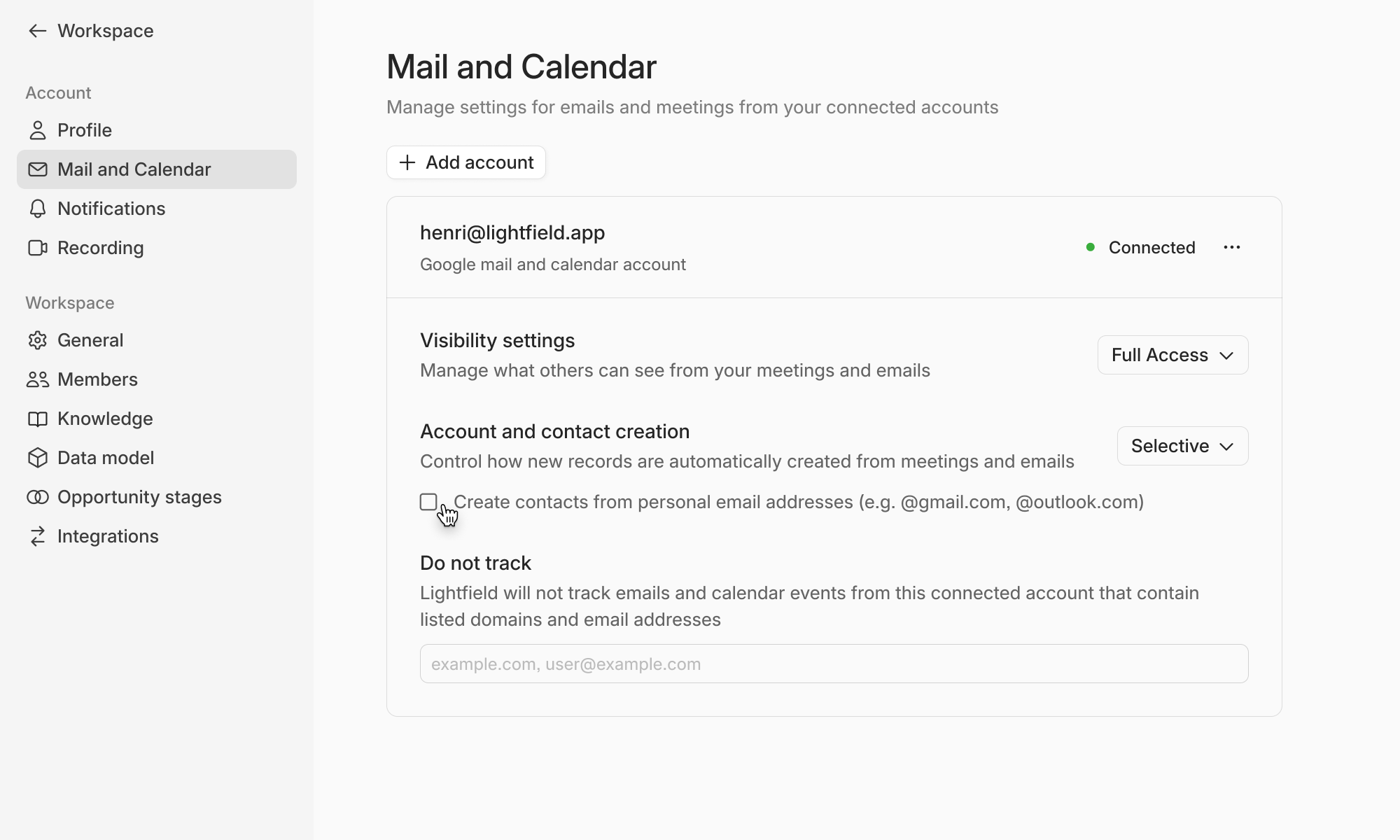
Visibility settings – control what teammates can view:
Full access: teammates can see shared meeting summaries, transcripts, and email context
Metadata only: teammates see participants and timestamps but not content
Record creation settings – control how records are created automatically:
Disabled: no records are created automatically
Selective: records are created only from emails you send or actively respond to, and meetings you personally organize or attend. Emails you receive but haven't replied to yet will not be logged - this helps prevent spam and marketing emails from cluttering your CRM.
Always: records are created from all emails and meetings connected to your inbox
Do not track – exclude domains or addresses you don’t want synced (e.g., personal emails)
By default, Lightfield only creates records for external business domains. To include personal or mixed-domain contacts (like @gmail.com or @outlook.com), go to Settings → Mail and Calendar and check Create contacts from personal email addresses
Reconnect and disconnect account
If you complete the email connection process and an account still shows Disconnected, it usually means Lightfield doesn’t have all required permissions.
To fix it:
Go to Settings → Mail and Calendar
Click the three-dot icon next to Disconnected
Select Connect Account and ensure you grant all permissions (mail, calendar, and contacts)
Partial permissions will stop syncing. Reconnecting with full permissions restores the connection immediately.
To disconnect an account:
Go to Settings → Mail and Calendar, click the three dot icon → Disconnect account
This stops future syncing but retains all previously captured data.
Common Questions
Can I connect both Gmail and Outlook?
Yes. Lightfield supports both Gmail (Google Workspace) and Microsoft Outlook / Office 365. You can connect accounts from both providers to the same workspace - useful if your team is split across providers, or if you have a personal Gmail alongside a work Outlook account.
How many accounts can I connect?
You can connect multiple accounts across Gmail and Outlook. Lightfield automatically deduplicates shared contacts and threads across them.
Can I choose what not to sync?
Yes. Use Do not track to exclude personal or sensitive domains from syncing. You can also delete a contact or account in Lightfield - records associated with them (such as meetings or emails) won’t be recreated going forward.