Microsoft Teams integration
Last updated: August 28, 2026
Microsoft Teams integration brings all your customer context in Teams to Lightfield.
Teams channel sync is available to all Pro customers.
Getting started
Setting up Teams integration happens in two steps inside Lightfield: first your workspace connects Teams, then each user connects their own account.
Step 1 - Connect Teams for your workspace (admin)
This is a one-time setup done by a workspace admin.
In Lightfield, go to Settings → Integrations and find Microsoft Teams.
Confirm whether you want to back sync all channel histories for your workspace. By default, the setting is on so you can make the most of channel connections. If you turn it off, no channel history will be imported, and syncing will start from the moment a channel is connected to an object in Lightfield.
Click Connect and approve the requested permissions in Teams.
When you return to Lightfield, choose a team to sync channels from. No channels will be available if there's no team selected.
Teams shows as Connected in Lightfield.
If you’ve previously set up a Teams connection, you’ll be prompted to refresh permissions to use the latest features.
Until an admin completes this step, individual users can’t connect their own accounts.
Step 2 - Connect your personal account
Each user does this for themselves.
In Lightfield, go to Settings → External apps, find the Teams card, and click Connect.
Approve in Teams. You must connect to the same Teams workspace your organization connected. This maps your Teams member ID to your Lightfield user, so the agent knows who you are and only shows you data you have access to.
Teams shows as Connected in Lightfield.
Sync Teams channels to Lightfield
Now you can add relevant Teams channels to your accounts or opportunities so Lightfield can capture all the customer context for you.
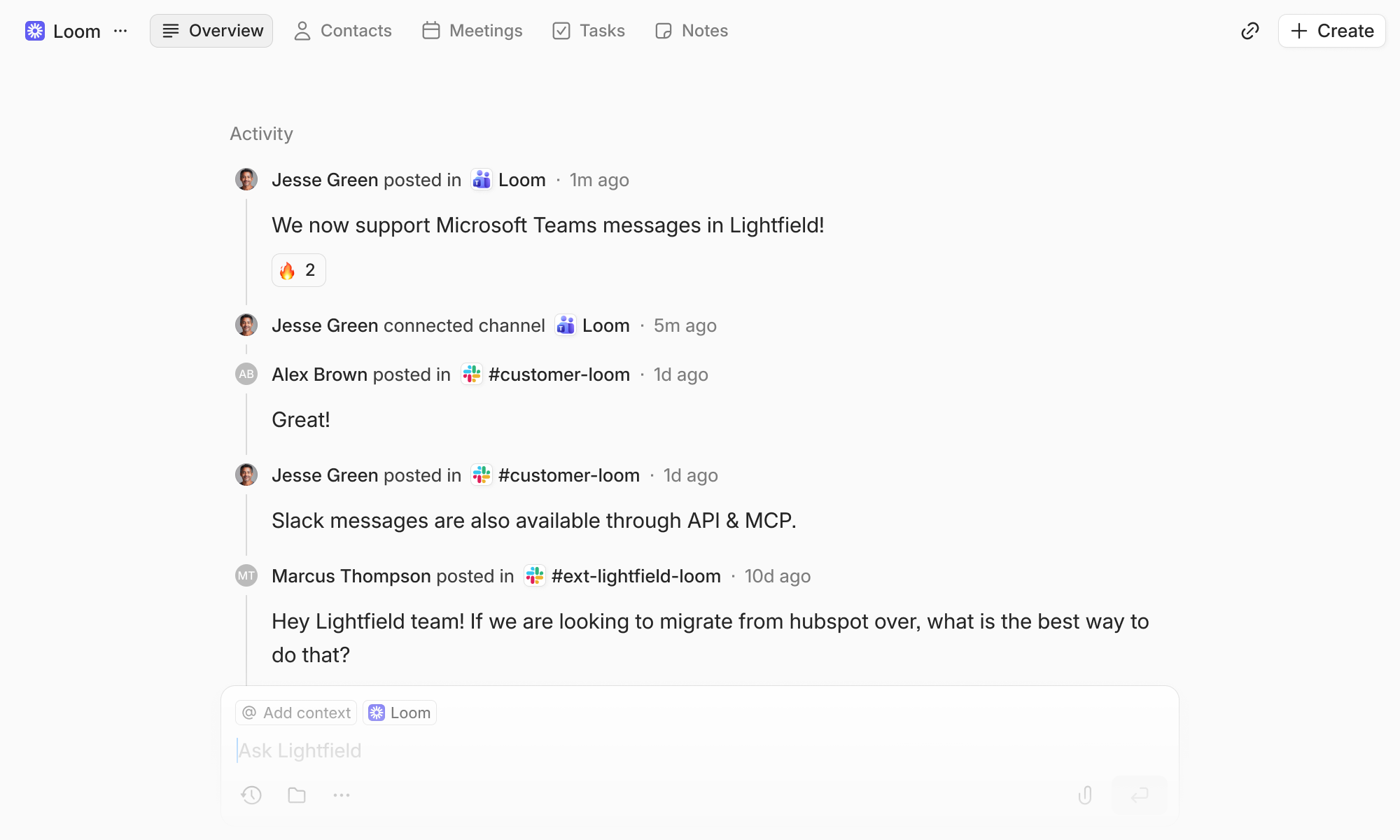
Connect a channel to your records
Connect an existing Teams channel to an account, an opportunity, or a custom object. Once connected, Lightfield syncs all messages, reactions, images, and attachments into the record’s Activity log.
If a Teams message is edited or deleted more than two months after it was originally sent, that change may not be reflected in Lightfield.
Link existing contacts
Lightfield will automatically map Teams members to your existing contacts by matching email addresses. You can edit contact mapping in the Contact page. Teams messages from the contact and to the contact (in @ mention) are shown on their Activity log. Note that Lightfield will not create new contacts from channel connection yet. One Teams member can only be mapped to a single contact, but a contact can have multiple Teams ID’s.
Agentic use of Teams context
Beyond showing messages in the activity log, Lightfield uses connected Teams channels to keep records current and answer questions in context.
Summaries: Lightfield keeps your account and opportunity summaries updated with context from the Teams channels connected.
Suggested record updates: The agent can propose changes to records based on what’s happening in Teams.
Ask Teams-related questions: When you’re working in the context of a specific account or opportunity, you can ask the agent about Teams activity for that record. Lightfield might not be able to answer questions around Teams channels independent of account or opportunity activities.
Privacy for private channels
For a private channel, message content is only visible to Lightfield members who are also members of that channel; everyone else sees metadata only. Public-channel messages are visible to your Lightfield workspace.
Messages from private Teams channels are never used for account summaries, suggested record updates, or agent answers—even if those channels are connected to a record. Private-channel content remains available in the activity log for members who can see it, but it stays out of the agent’s reasoning.
Disconnect & reassign
Detaching a channel from a record removes those messages from that record’s activity log. If a channel is no longer connected to any record, Lightfield stops syncing it, though existing messages remain in the system in case you reconnect later.
FAQ
Why can’t I see the messages in a private channel that I’m a part of?
This usually means your Teams account isn’t connected yet. Channel visibility is based on your individual Teams identity. If you haven’t connected your account under Settings → External apps, Lightfield doesn’t know who you are in Teams and can’t determine which channels you’re a member of, so those messages appear as metadata only rather than full content.
What if I want to turn off back sync after the initial connection?
Setting changes take effect immediately and are not applied retroactively. Turning off back sync won’t delete or alter any content that’s already been synced. It only affects channels you connect going forward, which will start syncing from the moment of connection instead of pulling in prior history.
I use Lightfield via API and MCP. Is Teams context available there too?
Yes. Teams context synced to Lightfield is available through the API and MCP, the same as other CRM data.
How much does Teams integration cost?
Teams integration is included in the Pro plan or above. See lightfield.app/pricing for Lightfield plan details.